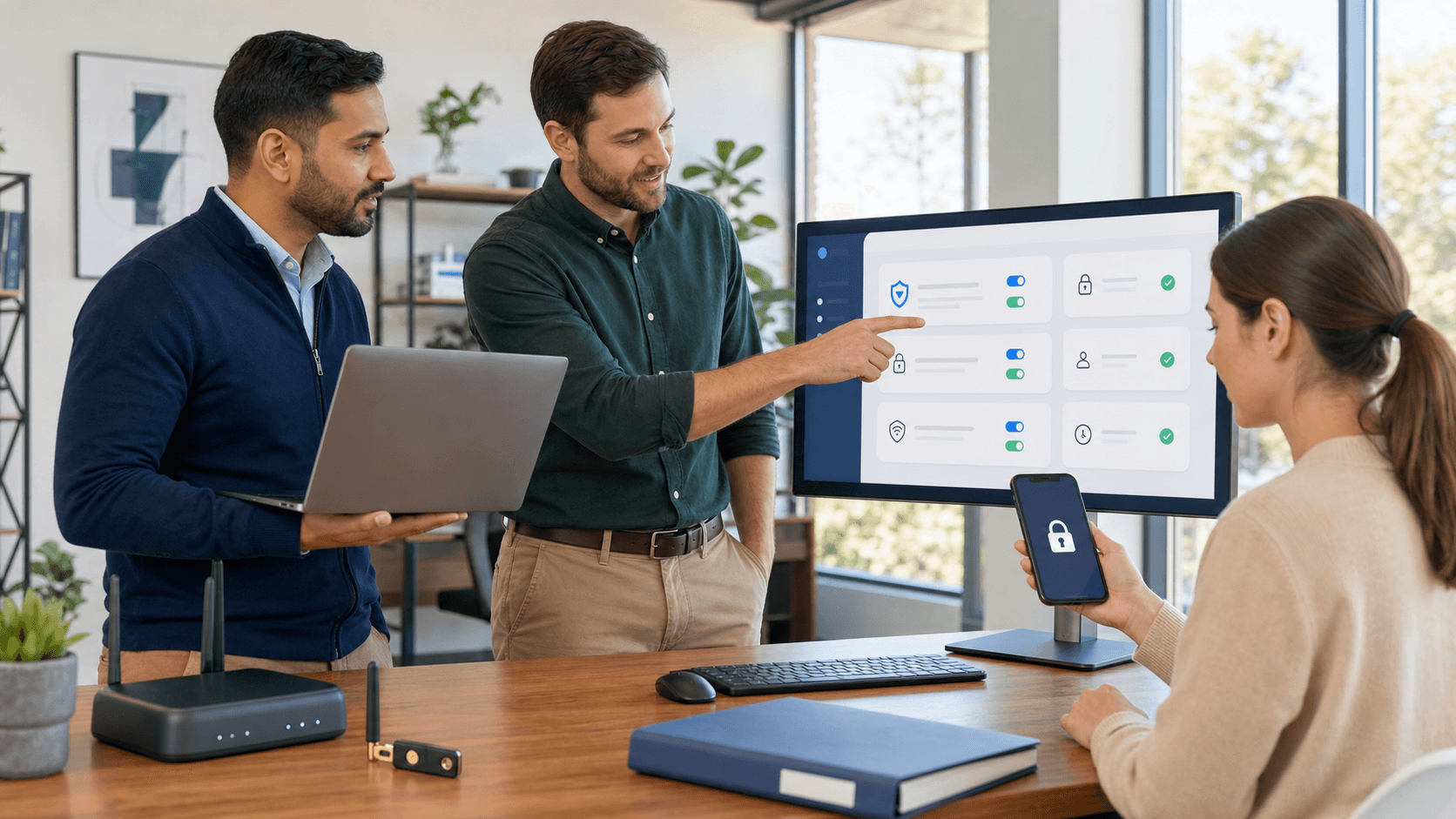
Why Default Windows Defender Settings Are Not Enough
Relying only on the default Windows Defender setup feels easy. You turn on your PC, see green checkmarks, and assume everything is safe. But those defaults are just a starting point, not a full shield around your digital life.
As the weather warms up and people travel more, laptops leave the house, kids are home on break, and everyone hops on random public Wi-Fi. That is exactly when weak settings and small gaps get exposed. A quick download on hotel Wi-Fi or a rushed click on a fake banking email can slip past a basic Windows Defender setup.
In this guide, we will walk through what Defender already does well, where the weak spots hide, and how to harden your Windows Defender setup without needing to be "techy." We will keep it simple, friendly, and practical so you can lock things down before your next trip or long weekend online.
What Windows Defender Does Well Out of the Box
First, credit where it is due. Windows Defender, right out of the box, is far better than running no protection at all. For many people, it quietly blocks a lot of obvious bad stuff in the background.
Here are some default strengths:
- Real-time protection that watches files as they open or run
- Cloud-delivered protection that checks suspicious items against online intelligence
- Automatic definition updates that keep new malware fingerprints coming in
- Basic integration with the Windows firewall to block some network attacks
On top of that, Windows has SmartScreen, which helps warn you about risky downloads and shady websites. There is also Controlled Folder Access, which can protect important folders from ransomware, but this feature is often turned off by default.
For someone who mostly checks email, watches videos, pays a few bills, and stays away from random download sites, the default setup can feel "good enough." The problem is that attackers have moved past sending only obvious viruses as files. They now use tricks that dance around these basic defenses.
Bad actors lean on:
- Malicious scripts that look like normal system tools
- Fileless malware that lives in memory instead of on disk
- Phishing pages that steal logins without dropping malware at all
So while Defender does a decent job on classic threats, the defaults alone do not fully match how attacks work now.
Hidden Weak Spots in a Default Windows Defender Setup
Many weak spots are not obvious, because the Security Center still shows a happy green icon even when some stronger tools are off.
Common gaps include:
- Controlled Folder Access left disabled, so ransomware can still scramble your files
- Notifications set in a way that makes you ignore alerts or miss important warnings
- No extra scans on external drives, so a bad USB stick or portable hard drive sneaks in
Default settings also do not fully cover advanced attack areas. For example, PowerShell and other script tools are powerful and often needed by Windows, but attackers love them too. Fileless threats that run only in memory can be harder for standard scans to catch quickly.
Then there is the "soft" side of security. Windows Defender can be green while your browser is loaded with:
- Shady extensions that track you and inject junk
- Bundled software that came with "free" downloads
- Old, unpatched apps that attackers know how to break
Think about common summer habits: grabbing "free" video converters, cracked games, cheat tools, or quick PDF editors right before a trip. Many of those installers pack in extras that Defender might not flag right away, or that slide in as "potentially unwanted" instead of obvious malware. By the time you notice odd pop-ups or slowdowns, someone may already be poking around your PC.
How to Harden Windows Defender Without Being an Expert
The good news is you do not need to become an IT pro to make real upgrades to your Windows Defender setup. A simple framework helps:
- Update
- Reduce attack surface
- Monitor
First, make sure Windows Update actually runs and finishes. Many people postpone reboots over and over, which leaves security fixes stuck in limbo.
Next, reduce attack surface. That means fewer easy paths into your system. You can:
- Turn on Controlled Folder Access to guard important folders
- Make sure SmartScreen is active in your browsers
- Schedule regular full scans instead of relying only on quick ones
- Get in the habit of scanning every USB drive when you plug it in
Then, improve monitoring. Learn what normal Defender notifications look like so you notice when something changes. If you see repeated blocks from the same app or site, do not just click "Allow" because you are in a hurry.
Many of the strongest protections are not simple on/off switches in a pretty menu. They live behind PowerShell and command line tools. With the right commands, you can:
- Tighten policies so random scripts cannot run freely
- Lock down PowerShell so it is harder to abuse
- Reset or repair Windows security features if they get damaged by malware
This is where a clear, copy-paste style command guide can help a lot, especially if you are not comfortable typing long commands by hand. You follow the steps, paste the commands, and your PC becomes much harder to break into.
If you want a structured, beginner-friendly collection of those commands and step-by-step walkthroughs, you can find them in the eBook at Dizifit.com. It expands on these tips with ready-made command snippets you can safely copy and paste.
Beyond Antivirus: Building a Layered Windows Security Plan
Antivirus, even a well-tuned one, is only one piece of staying safe. A stronger plan stacks multiple simple layers so one mistake does not ruin your whole week.
Key layers include:
- Strong, unique passwords for each account
- Multi-factor authentication for email, banking, and social media
- Encrypted backups of your files, stored off the PC
- Safe, updated browsers with minimal extensions
As we move into warmer months and more trips, think about travel risks too. Before you leave:
- Turn on device encryption if your Windows version supports it
- Set a strong PIN or password for logging in
- Make sure "Find my device" or similar tracking features are active
- Back up your important files in case a laptop is lost or stolen
On hotel or airport Wi-Fi, be extra careful with anything involving money or private data. A few privacy tweaks help as well:
- Limit which apps can use your camera and microphone
- Turn down location sharing for apps that do not truly need it
- Consider DNS filtering or a good VPN if you use a lot of public networks
When you stack these layers on top of a hardened Windows Defender setup, you turn a regular Windows PC into a much tougher target. Attackers look for easy wins. You do not have to be perfect; you just have to be harder to break into than the next person.
Turn Your PC Into a Hard Target Starting Today
Default Windows Defender settings are a solid starting point, but they are not the full answer to current scams, malware, and account takeovers. Small changes like turning on extra features, running deeper scans, and locking down common attack paths make a big difference, especially during busy travel seasons.
A quick personal checklist might look like this:
- Run Windows Update and reboot
- Open Windows Security and review your Windows Defender setup
- Turn on Controlled Folder Access and confirm SmartScreen is active
- Schedule a full scan and run it when you can let the PC sit
- Clean up risky browser extensions and old, unused programs
From there, using clear, copy-paste defensive commands gives you a way to harden, repair, and secure your system without guessing through every menu. Instead of hoping the defaults are enough, you take control and turn your PC into a hard target before your next trip, online banking session, or late-night browsing streak.
To go deeper with beginner-friendly Windows security commands, checklists, and walkthroughs, explore the full guide at Dizifit.com and build a long-term, layered defense around your devices, accounts, and data.
Strengthen Your PC Security With Expert Guidance Today
If you are ready to lock down your system the right way, we can guide you through every step of a secure Windows Defender setup. At Dizifit, we focus on practical configurations that fit how you actually use your computer, not one-size-fits-all tips. Let us help you reduce vulnerabilities, fine-tune protections, and keep your device running smoothly and safely. Reach out today so we can help you secure your Windows environment with confidence.
Frequently Asked Questions
Is Windows Defender enough with the default settings?
Default Windows Defender settings are a solid baseline, but they are not full protection for modern threats. Attacks like phishing, malicious scripts, and fileless malware can slip past basic defaults, especially on public Wi-Fi or during travel.
What does Windows Defender protect against by default?
By default, Windows Defender provides real-time protection, cloud-delivered checks, automatic definition updates, and basic firewall integration. It also works with SmartScreen to warn about risky downloads and suspicious websites.
What is Controlled Folder Access in Windows Defender, and should I turn it on?
Controlled Folder Access is a Windows security feature that helps stop ransomware from changing files in important folders. It is often off by default, and turning it on can add a stronger layer of protection for documents and photos.
How can I harden Windows Defender without being an expert?
Start by making sure Windows Update runs and fully finishes so security fixes are installed. Then enable stronger options like Controlled Folder Access, review notifications so you do not miss warnings, and scan external drives like USB sticks before opening files.
What is the difference between malware protection and phishing protection?
Malware protection focuses on blocking or removing harmful software that runs on your computer. Phishing protection focuses on stopping fake websites and emails that trick you into giving away passwords or banking details, even when no malware is downloaded.